A classroom webcam game works best as a short, supervised turn-taking activity. One player controls the game inside a clear camera zone; classmates can watch, call targets or keep the turn order. Start with the movement your room can accommodate, test the school device, and set an explicit stopping point before inviting students.
A practical classroom rotation
- Before class: open the game hub, check which games are free and which require Pro, and try a complete round on the actual school device. A teacher may need to sign in for paid games.
- Prepare the zone: position the camera away from bystanders and check that reaching or stepping will not bring the player into desks. Projecting the screen makes the activity visible; the laptop camera still supplies the input.
- Demonstrate one turn: show the movement and the end of a round. Invite a willing player while others observe. Watching, calling targets or keeping time are valid participation choices.
- Rotate and stop: use a short turn order and a visible countdown. Give students a clear return-to-seats cue rather than relying on the next game to end the activity.
Choose the game by the room
| Game | Player action | Check before using it |
|---|---|---|
| WhackAMole | Reach toward targets that appear on screen. | Arm clearance and target visibility; let students watch a full round first. |
| Reaction | Hit numbered targets in order with hands and feet. | Floor and foot clearance. It is a timed whole-body task, not automatically a desk activity. |
| NeonStompBattle | Step sideways to musical cues. | Enough side-to-side room, suitable sound volume and a floor that accommodates stepping. |
A webcam tracks the active player; projecting the image does not make every pupil a separately tracked player. For a group without enough room or a suitable camera, use the offline activities in the brain-break guide.
School devices, permissions and privacy
Browser-based play avoids a dedicated console, but it still needs camera permission, a capable browser and access to game and tracking resources. Managed devices may block cameras or external resources. Test with the account, network and display you will use in class; being able to run a video call is not a compatibility test for these games.
Camera frames used for motion input are processed on the device. This is separate from account, analytics and game-session data. Read the privacy policy and apply your school's approval process before use. Keep students outside the camera frame when they are not playing, and stop camera access when the activity ends.
Free access and classroom costs
The hub is browsable without an account. The current free selection is identified there; paid live games require sign-in and a verified Pro entitlement. There is no separate classroom exemption on this page. Check current plans before scheduling an activity around a paid title.
Plan a break without promising a learning outcome
Use movement play as an activity choice or a transition. MovePlay game scores do not measure concentration, classroom attainment or a health benefit. Observe whether the activity suits your class, keep an opt-out available, and use the movement break timer to define the end. An adult should continue supervising the play area.
Questions teachers ask
Does it work with a classroom display?
A laptop connected to a projector or display can show the browser game to the room. Keep its webcam pointed at the player and test the display arrangement before class. See the large-screen setup guide.
Do students need separate accounts?
Check the selected game's access requirements. A teacher-controlled session does not require making an account for every observer, but paid games still require a signed-in Pro account. Follow the applicable account terms and school policy.
Is a Chromebook guaranteed to work?
No device family is a guarantee. Browser version, graphics, camera access, network restrictions and game requirements all matter. Follow the setup checklist and test a complete round on the device.
Choose a specific classroom format
Use small-space indoor PE activities, quiet no-jumping choices or seasonal classroom gestures. Check school camera permissions before planning a tracked station.
Research-informed next steps
Plan a classroom active break; Understand the research behind active games.
Games to preview
Review the controls, play area and access label before opening a game.
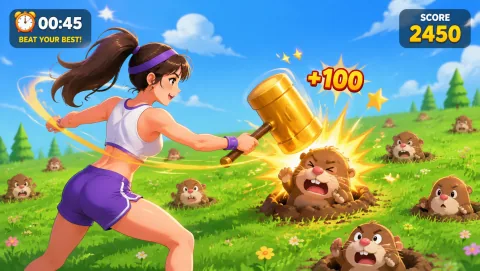
Whack A Mole
Reach moles before they disappear and keep the next target in view.
Controls: Reach or lean toward the mole positions.
First-round idea: Hit the next visible mole without rushing the return to center.
Pro · sign-in required
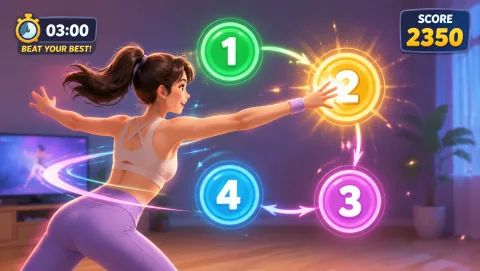
Reaction
Read scattered numbers and reach them in order as the time window shrinks.
Controls: Reach numbered targets with hands and feet.
First-round idea: Finish a number sequence in the correct order.
Pro · sign-in required
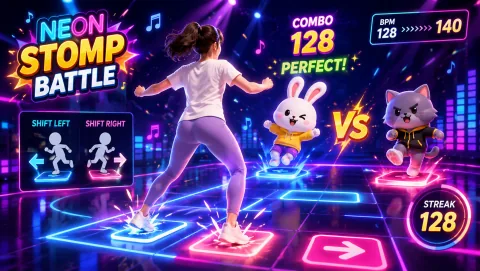
Neon Stomp Battle
Follow musical cues with lateral steps and weight shifts. Timing matters more than frantic movement.
Controls: Step sideways and shift weight to the beat.
First-round idea: Keep a clean sequence of beats before chasing a longer combo.
Pro · sign-in required