If a camera game fails on a school Chromebook or laptop, first identify whether the block comes from the site, browser, operating system or school policy. Repeatedly clicking Allow will not change an administrator-controlled setting. Use only an approved device and workflow; do not disable management or ask pupils to use personal accounts to get around a restriction.
Use the symptom to choose the next check
| Symptom | Possible layer | Next step |
|---|---|---|
| No permission prompt | Remembered browser choice or managed policy | Review the site’s camera permission if editable; ask IT if locked. |
| Prompt appears but access fails | Browser or system permission | Check both layers on the approved device; record the exact message. |
| Black preview or wrong view | Camera selection, cover or another app | Check the selected camera and physical cover; close other camera-using apps. |
| Preview works but tracking does not | Game/model load, framing or device response | Separate camera capture from tracking; test lighting and an approved network path. |
| Page loads but game is locked | Account or subscription | Check access rules; camera permissions will not unlock Pro. |
Check the browser and system separately
In an editable Chrome installation, open Settings → Privacy and security → Site settings → Camera and review the relevant site’s permission and camera selection. Chrome may also need the computer’s camera permission. Setting names differ by device and version; use Google’s current camera-permission instructions for the exact path. Google also explains that work or school administrators can control these settings.
On a managed Chromebook, a greyed-out setting is useful evidence for IT. Do not replace it with an unapproved browser, profile or device. If permission is available, make the choice only for the intended site; a working camera permission does not establish school approval of a service’s accounts, analytics or data handling.
Distinguish capture from motion tracking
A moving preview proves that frames are arriving, not that every movement game is compatible. Tracking may depend on downloaded model files, script execution, lighting, framing and device performance. Keep the same game and change one variable at a time. A browser camera can work in a meeting while a game’s model load still fails.
Use front lighting, show the body region required by the chosen game, and test one deliberate movement. Check framing and setup. If the player is visible but controls still do not respond, record the game and symptom instead of repeatedly asking for bigger or faster movement. The compatibility page is a test checklist, not a completed school-device certification.
Send IT a useful problem report
- Device model, operating system and browser version.
- The exact game URL, date/time and whether the device is managed.
- Whether the page, camera prompt, preview and tracking each appeared.
- The exact error text and which approved checks have already been tried.
- Whether the problem affects one device or a comparable set.
Keep screenshots free of pupil faces, account details and unrelated tabs. Send the report through the school’s usual support route. Do not publish camera images, passwords or a screenshot of the whole class as a troubleshooting attachment.
Keep the lesson running without the camera
Use a human-led mirror or direction game while the device is checked. Indoor PE formats and quiet gestures provide rules that need neither camera access nor a game account. If a camera station is approved later, preview a complete turn with an adult before offering it to pupils.
MovePlay processes the camera input separately from account, analytics and session data; read the actual privacy boundaries and teacher setup guidance. A classroom activity suggestion is not a FERPA/COPPA certification, a school licence or a guarantee that every managed Chromebook will work.
Games to preview
Review the controls, play area and access label before opening a game.
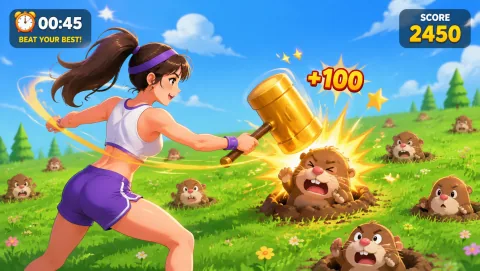
Whack A Mole
Reach moles before they disappear and keep the next target in view.
Controls: Reach or lean toward the mole positions.
First-round idea: Hit the next visible mole without rushing the return to center.
Pro · sign-in required