The most reliable way to play a browser webcam game on a TV is to run the game on a computer, connect that computer to the TV, and keep the camera connected to the same computer that is running the game. The TV is the display; the browser device still owns camera permission and motion tracking.
This matters because simply opening a browser on a smart TV does not guarantee that the TV browser supports the required camera, graphics and local machine-learning features.
Setup 1: laptop + HDMI — the default recommendation
This is usually the simplest and most reliable setup.
What you need
- laptop with a working webcam;
- HDMI cable or appropriate USB-C/DisplayPort adapter;
- TV with an available HDMI input;
- enough space to place the laptop where its camera can see the player.
Steps
- Connect the laptop to the TV.
- Select the correct TV input.
- Mirror or extend the display; mirroring is simpler for a first session.
- Open MovePlay in the laptop browser.
- Allow camera access on the laptop.
- Put the laptop below or near the TV so the camera faces the play zone.
- Test one full movement before starting the game.
Why it works well
The video link to the TV is wired, so display latency is predictable. The laptop browser and camera remain in the same environment MovePlay normally uses.
Setup 2: desktop/mini PC + USB webcam near the TV
This is a clean permanent living-room setup when a PC already drives the TV.
What you need
- PC connected to the TV;
- compatible USB webcam;
- webcam cable or extension that allows sensible placement;
- stable mount near the TV.
Camera placement
Mount the camera close to the centre of the screen if possible. A large vertical or horizontal offset can make the player look at one location while interacting with a camera from another angle.
For full-body games, a wider camera field of view can reduce the distance required, but wider is not automatically better: excessive wide-angle distortion can change how movement appears near the edge. Test the real camera rather than buying based on one specification.
Setup 3: wireless display mirroring
AirPlay, Chromecast-style mirroring or other wireless display systems can work, but they introduce another latency and reliability layer.
The key rule remains:
The browser game and camera tracking should run on the source device. The TV receives the display output.
When wireless is acceptable
- slower-paced hand or pose games;
- casual family play;
- rooms where cable routing is awkward.
When wired is preferable
- reaction games where display delay is noticeable;
- public events;
- troubleshooting;
- situations where Wi-Fi is already busy.
Why opening the game directly on a smart TV is not the default
Smart-TV browsers vary widely. A TV may lack:
- camera APIs or permission UI;
- WebAssembly performance;
- required graphics support;
- a usable camera connection;
- a current browser engine.
Some TV/device combinations may work, but they should be published only after specific testing. Do not promise “any smart TV.”
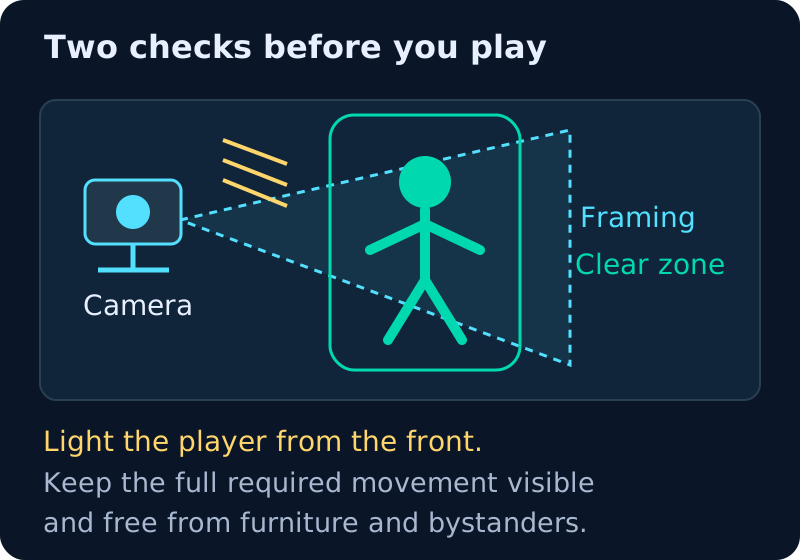
Put the camera where the game expects the player
A large TV encourages people to stand farther away, but the camera still needs a useful view.
Check:
- the required body parts are visible;
- the player does not need to look down at a laptop placed on the floor;
- the camera is stable;
- cables do not cross the play zone;
- the TV or stand is not inside the movement path.
For a laptop + TV setup, a small stand below the TV is often better than leaving the laptop on a coffee table where the angle points upward.
Audio
HDMI normally sends browser audio to the TV automatically. If audio remains on the laptop, select the TV as the operating system’s output device.
Avoid excessive volume in apartment or classroom use; game feedback should remain understandable without becoming part of the physical challenge.
Full-screen and browser zoom
Use browser full-screen mode only after camera permission and the game interface are working. Keep browser zoom at the supported default unless the game has been tested at another scale.
A large TV does not require scaling the web page beyond what the game layout expects.
Troubleshooting
The TV shows the game but the camera does not work
The camera permission belongs to the browser on the source computer, not the TV. Check the laptop/PC browser permission and make sure another app is not holding the camera.
The player is cut off at the knees or feet
Increase camera distance, adjust camera height/tilt, or choose a game that only needs upper-body input. Do not balance the device on unstable furniture.
The controls feel delayed
Test the same game on the source laptop screen. If the laptop feels responsive but the TV does not, disable TV motion smoothing/game-unfriendly processing, use Game Mode if available and prefer a wired display connection.
Wireless mirroring stutters
Move to HDMI for diagnosis. Wireless display performance and motion tracking are separate systems; remove the display-network variable first.
FAQ
Do I need a console to play MovePlay on a TV?
No. A computer running the browser can send the picture to the TV while using its normal webcam or a USB camera for motion input.
Can the TV’s built-in camera be used?
Only if the browser device can access it through a supported path. This varies by TV platform and should not be assumed.
Is HDMI better than wireless mirroring?
For predictable latency and troubleshooting, yes. Wireless mirroring can be convenient for slower-paced play.
Where should the webcam go?
As close as practical to the visual centre of the display, with a clear view of the required movement zone.
Next step
Start with the laptop + HDMI setup, open a low-friction game from the Game Hub and test one full round before rearranging the room for a permanent setup.