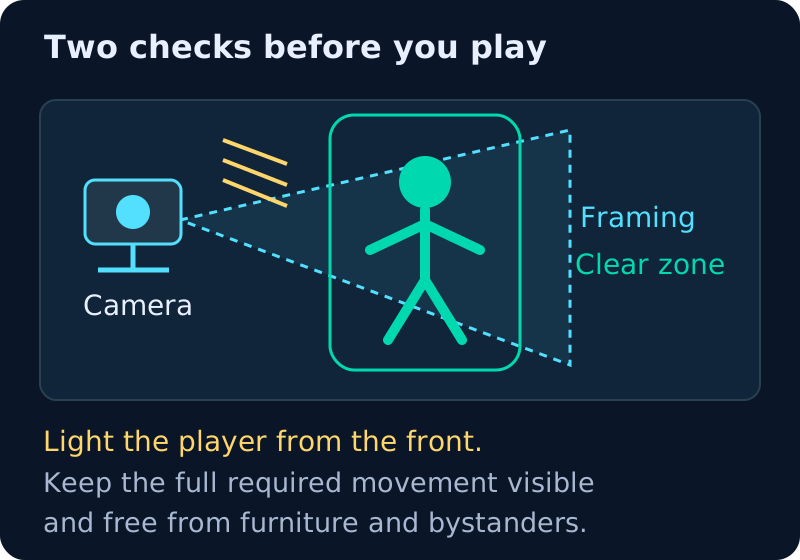
A webcam motion game works best when the camera can see the movement clearly and the player can move without adapting around furniture. Most setup problems come from framing, lighting, camera contention or choosing a game whose movement does not fit the room.
Use this five-minute setup before changing settings at random.
Step 1: put the device in its real playing position
Do not calibrate on a desk and then move the laptop to the TV area. Camera height and angle change the body geometry the tracker sees. Place the device where it will remain during the session. If you use a TV, follow the TV setup guide so the camera stays connected to the browser device.
Step 2: choose camera distance by the required body area
There is no universal distance because cameras have different fields of view and games track different body regions.
- hand/head/upper-body game: begin close enough that hands and shoulders are clear but not clipped during reaches;
- full-body game: begin around 1.5–2 metres away, then adjust until the required body parts remain visible through the widest movement;
- wide lateral game: leave extra room on both sides of the player, not just between player and camera.
The correct distance is the nearest position where the full required movement remains in frame comfortably.
Step 3: fix lighting before blaming tracking
The camera needs visual separation between the player and background. Prefer: light in front of or beside the player; an evenly lit room; contrast between clothing/body outline and background; no bright window directly behind the player. Avoid: strong backlight; a dark room with only the screen illuminating the face; rapidly changing decorative lights during calibration; a camera lens covered by fingerprints or privacy film.
Better lighting often helps more than moving faster or making exaggerated gestures.
Step 4: clear the movement zone
Check the largest movement the game may trigger. Move or secure: charging cables; rolling chairs; low tables; floor clutter; unstable lamps; fragile objects within arm reach.
If the game includes jumps or quick steps, use a stable, non-slip surface and enough landing clearance. If the room cannot support that movement, switch to a lower-travel game.
Step 5: grant camera permission and check the correct camera
When the browser asks for camera access, allow it for the MovePlay site if you intend to play.
If the wrong camera opens: check the browser's site permission/camera selector; disconnect unused external cameras if necessary; close video-call apps that may hold the camera; reload the game after changing the device. Do not keep clicking "Allow" if the browser is actually blocked by operating-system privacy settings.
Step 6: test the movement, not just the preview
A centred camera preview is only the start. Perform the main control five times: reach to both extremes; squat to the depth you expect to use; step left/right; raise the knee; make the hand gesture.
The tracking should remain stable throughout the action and return to a neutral state afterwards.
Step 7: run one complete short round
A full round tests transitions that calibration cannot: score feedback; movement under time pressure; player drift toward the screen; camera loss at the edge; whether the room still feels comfortable after repeated movement.
If the player consistently moves outside the safe zone, choose another control style.
Common problems
The game does not see the camera. Confirm the site has browser camera permission; confirm the operating system allows camera access for the browser; close Zoom, Teams, Meet, OBS or other apps using the camera; reload the page; test the camera in another trusted browser page to separate hardware from site issues.
Tracking loses hands or feet. Move farther back or adjust camera height/tilt. Check that the body parts are not leaving the frame. Increase front lighting.
Movement feels delayed. Close heavy tabs and applications, test the recommended browser from the compatibility notes, and compare a lower-complexity game. If display mirroring is involved, test on the source screen to separate TV latency from tracking latency.
The player has to make movements too large. Do not compensate for poor framing by exaggerating indefinitely. Reposition the camera or choose a game whose input is more compatible with the current setup.
The camera preview is mirrored. A mirrored preview can feel natural because it behaves like a mirror. Follow the game's on-screen left/right cues rather than assuming every title displays raw camera orientation the same way.
Small rooms, kids and classrooms
Small rooms: use the small-space guide and prefer hand/head/lean controls if repeated lateral movement or jumping is impractical.
Kids: supervise the first session, check physical clearance and review the parent webcam-game checklist. Camera privacy and physical play-space safety are separate decisions.
Classrooms: use one managed device, confirm school camera/network policy and test the exact browser profile before class. Do not troubleshoot a new camera permission flow while students wait.
Privacy
MovePlay states that gameplay camera frames used for motion tracking are processed locally in the browser rather than uploaded or stored as gameplay video. Read the camera privacy explainer for the technical path and verification steps.
Five-minute pre-play checklist
- Camera lens is clear.
- Browser has camera permission.
- Required body parts stay in frame through the full movement.
- Light is in front/side, not a bright window behind.
- Floor and arm path are clear.
- Other camera apps are closed.
- One complete short round has been tested.
FAQ
How far should I stand from the webcam? Use the closest distance that keeps the required movement visible. For many full-body setups, 1.5–2 metres is a useful starting point, but camera field of view and the game control determine the final distance.
Do I need a 1080p camera? Not necessarily. Resolution is only one variable; lighting, field of view, frame rate, device performance and the movement itself matter too.
Why does tracking work better during the day? More even light can improve the visual information available to the camera. At night, add front or side lighting rather than relying only on the screen.
Should I put the laptop on the floor for full-body tracking? Only if it can be placed stably and the angle remains useful. A low camera can distort the view and create trip hazards. Prefer a stable stand or a lower-travel game over an unsafe improvised mount.
Next step
Open one game from the Game Hub, complete this setup once, and save the successful camera position for future sessions.