Webcam games on Android & iPhone

Webcam motion games on a phone: what works, what does not, and how to set up

No console, no laptop, no app store. All MovePlay games run in your phone's browser with the front camera — the trick is propping the phone so it can see you, and picking games that stay readable on a small screen.

Snake gameplay preview
Snake Steer the snake by moving your palm in front of the camera — the longer it grows, the harder it is to turn. One hand, arm's length from the phone: the ideal small-screen motion game.
Best for

Best for anyone whose only screen is a phone or tablet — commuters, hotel rooms, dorm desks, kitchen counters — who wants active play without downloading an app or owning a console.

01

Where Phone Play Shines

A phone session is the motion-game equivalent of a sketchbook — small, instant, everywhere. It works in places a laptop never comes out: leaned against a hotel ice bucket, propped on a kitchen shelf while dinner cooks, balanced on a dorm desk between classes. The sessions that fit this format are short and upper-body: five minutes of hand-tracking rounds, then pocket the phone and move on.

02

The Honest Tradeoff

Motion games need distance — the camera has to see the body part doing the work — and distance is the enemy of a small screen. At arm's length a phone is perfect for hand and head games. At the six to eight feet a jumping game wants, that same screen becomes a postage stamp. This isn't a flaw to fix; it's the deciding factor for which games to open on mobile.

03

Why Not Just an App?

Because browser games skip the two things that kill a spontaneous session: the install and the signup. On MovePlay you open Chrome, tap the game, grant camera access once, and you're playing in under a minute — the same webcam games a laptop gets, with nothing left on the phone afterward. Camera processing happens on your device, not in the cloud.

The prop

Stand the phone up with what's in the room

The single biggest failure mode of phone play is the phone sliding flat mid-round. Spend thirty seconds on a stable prop before you spend five minutes playing. Four setups that work anywhere:

Framing

Put yourself in the front camera's view

Front cameras are wide but not magic. A game that can't see the moving body part can't score it, so frame deliberately instead of guessing.

Screen size reality check

Match the game to the glass

Think in three distance bands. Each band has games that feel native to it — and games that technically load but practically don't work.

Arm's length — the phone band

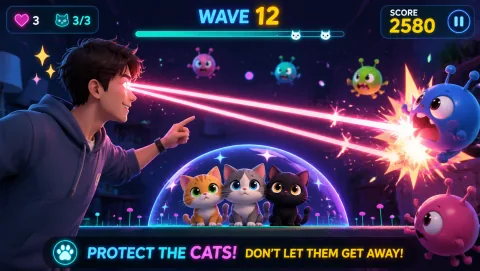
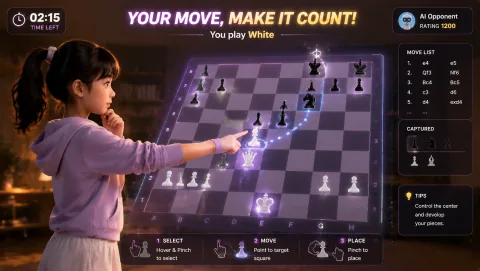
Hand-tracking and head-tracking games live here: steering a snake with your palm, popping bubbles with pointed fingers, aiming lasers with small head turns, pinching chess pieces between fingers. The screen is inches away, so every target stays readable and every gesture lands. This is where a phone beats a laptop — the webcam is already pointed at you at exactly this range.

One big step back — the tablet band

A tablet earns you an extra step or two of distance before the screen gets too small, which unlocks arm-sweeping games: slashing fruit, swatting moles at full reach. The catch is stability — a tablet needs a real stand, not a flimsy kickstand case, because a falling tablet ends the session expensively.

Six feet out — the laptop band

Full-body games want your legs in frame: jumping, ducking, kicking, running in place. That means six to eight feet of distance, and at six feet a phone screen is unreadable. Move these to a laptop on a chair, or go further and put the game on the TV — the TV setup guide walks through it.

Slow hands picks

For one-handed or seated play

Want jumping and kicking instead? Bunny Hop and the other cardio games play best from a laptop or TV — check the cardio collection when you're near a bigger screen, and the game hub for the full set of 16.

Setup checklist

Sixty seconds from pocket to playing

  1. Prop first, open second: stand the phone up and confirm it doesn't slide under a light finger-tap before you even open the browser. Re-propping mid-round costs more time than the extra ten seconds here.
  2. Open Chrome and allow the camera: the game asks for camera permission once — grant it, and keep the tab in the foreground; backgrounded tabs pause the camera.
  3. Check the pose overlay: wave a hand and watch the detection overlay respond. No response usually means weak light on you or a smudged front lens — wipe it and face the light.
  4. Do one calibration round: play a single throwaway round to learn how far your gestures reach on this screen, then restart and play for score.
  5. Plug in for long sessions: camera tracking drains battery faster than video streaming. Over 15–20 minutes of play, keep the phone on a charger and off battery-saver mode.

Phone setup notes

Keep the phone (and you) in one piece

Never balance the phone somewhere a failed prop means a broken screen — tile floors and the edge of a counter are the classic losses; a rug or carpet underneath is cheap insurance. Clear an arm's-length bubble around your play spot even for hand games, because a big mole-smashing swing travels further than you think. And mind your neck: phone play already tilts your head down, so raise the phone toward eye level when you can and take a stretch break between sessions. Not sure a game will run well on your phone? The compatibility test checks your camera and browser in about a minute.

Questions phone players ask

FAQ

Do webcam motion games work on an Android phone?

Yes. MovePlay's games run in the browser, so Chrome on Android loads them the same way it does on a laptop — no app install, no account. Grant camera permission when the game asks, prop the phone so the front camera sees you, and play. Hand-tracking and head-tracking games work best on a phone screen; full-body cardio games are easier on a laptop or a casted TV.

How do I prop up my phone for a camera game?

Any stable lean works: a mug, a water glass, a stack of books, or a cheap phone stand. Angle the phone back slightly so the front camera tilts up toward you, and place it at roughly chest height for hand games or hip height for full-body games. Test the frame before the round starts — if you can see your hands at the edges of the preview, the camera can see them too.

Which games fit a small phone screen?

Games where the action sits near the camera read fine on a 6-inch screen: Snake (steer with your palm), Bubble Match (point with one hand), Whack-a-Mole (reach and tap), Laser Eyes (aim with head turns), and the gesture chess games. Games that track your feet or need you several steps back — Bunny Hop, GenkiRun, High Kicks — shrink to thumbnail size on a phone, so play those on a laptop or cast to a TV.

Is a tablet better than a phone for motion games?

For most games, yes. A tablet's larger screen lets you stand an extra step or two back while still reading the targets, which opens up arm-sweeping games like Fruit Slash that feel cramped on a phone. The tradeoff is propping: tablets are heavier and tip more easily, so use a real stand or a firm lean against something heavy rather than a flimsy case kickstand.

When should I switch to a laptop instead?

Switch when the game needs your whole body in frame. Jumping, ducking, kicking, and running-in-place games want you 6 to 8 feet from the camera, and at that distance a phone screen is too small to play from. A laptop on a chair or table gives you a bigger picture and a wider, more stable camera angle — and if you want the biggest version, connect the laptop to a TV.

Does playing on mobile data or battery cause problems?

Camera tracking runs on the phone itself, so expect the battery to drain faster than ordinary browsing — plug in for sessions longer than 15 or 20 minutes, or keep rounds short. The games are light web pages, so mobile data use is modest, but Wi-Fi loads them faster and avoids stutter mid-round. Dim or warm battery-saver modes can also throttle performance, so turn them off while playing.


MovePlay — Free Webcam Motion Games

Your phone is already the console. Prop it up and play.

Play Snake free in your browser