Preview is black or frozen
The camera itself isn't reaching the browser — another app is holding it, the browser was denied permission, or the OS camera privacy setting is off. Work through the webcam games not working checklist.
Help center — tracking setup
If the game sees your hands and face but ignores your kicks, squats, and jumps, the fix is almost never the game — it's the camera setup. Work through the five checks below in order; most players are fixed by step two.
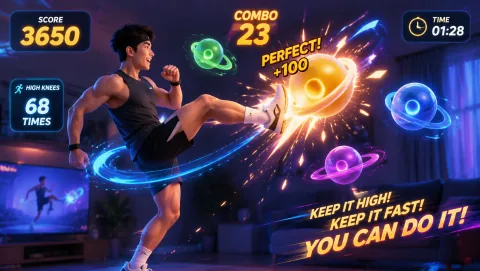
The camera preview shows you, hand movements register, but leg and full-body actions don't score — or the on-screen skeleton only covers your upper body. Cause in 9 out of 10 cases: your legs aren't in the frame, or the camera can't tell you apart from the room.
Step-by-step fix
Do these in order and stop as soon as tracking works — each step fixes a different cause, and later steps can't help if an earlier one is broken.
Confirm the camera is on and allowed. You should see yourself in the game's camera preview with the pose overlay drawn on top. If the preview is black or the browser never asked for camera access, that's a permissions problem, not a framing one — follow the camera permissions fix first, then come back here.
Step back to 5–6 feet (1.5–1.8 m). This is the single most common fix. Stand where you plan to play and look at the preview: you need head, fully raised hands, and feet all visible at once. If your feet are cut off, walk back or tilt the camera down until they appear. This is the 5–6 ft rule — it applies to every full-body webcam game regardless of brand.
Fix the camera height. A camera at eye level on a monitor captures your legs at a steep downward angle, which shortens them in frame and confuses detection. Ideal placement is hip to chest height, tilted slightly down — a shelf, a stack of books under a laptop, or the TV stand if you're playing on a TV-connected setup. Eye level is acceptable; floor level and ceiling level are not.
Fix the lighting. Light yourself from the front: face a window during the day, or put a lamp behind the camera pointed at you at night. Never play with a bright window directly behind you — backlight turns you into a silhouette and the tracker loses your outline. Overhead room lights alone are usually enough once the backlight is gone.
Fix contrast and background. Change out of clothes that match the room — dark pants on a dark floor, black hoodie against an unlit wall. Move clutter, laundry piles, and busy furniture out of the frame behind you, and ask other people to stay out of the shot; a second person moving in the background steals the tracker's attention. A plain wall or empty floor behind you is ideal.
Still broken after all five steps?
The camera itself isn't reaching the browser — another app is holding it, the browser was denied permission, or the OS camera privacy setting is off. Work through the webcam games not working checklist.
Detection is fine; the machine is struggling to keep up. Close heavy tabs, plug in the laptop, and shrink the browser window. See the lag reduction guide for the full list.
Full-body games (High Kicks, Bunny Hop, Squat Pacman, Genki Run) are far more demanding than hand-tracking games. If Fruit Slash and CyberKnot work but kicking games don't, re-check steps 2 and 3 — you're likely framed for your hands only.
Device specifics
Setup is the same everywhere, but a few platform quirks look like detection problems when they aren't.
Chrome and Edge (Windows/Mac): best-tested browsers for webcam games. If the camera light is on but the preview is black, another tab or app (Zoom, Teams, OBS) is holding the camera — close it and reload the game page.
Safari (Mac): check macOS System Settings → Privacy & Security → Camera and make sure Safari is allowed. Safari also asks for camera permission per website — if you clicked "Never for This Website" once, reset it in Safari → Settings → Websites → Camera.
Windows 10/11: Settings → Privacy & security → Camera must have both "Camera access" and "Let desktop apps access your camera" turned on, or browsers get a black frame with no error message.
Laptops on battery: battery-saver mode throttles the CPU, which makes tracking flicker even with perfect framing. Plug in before playing, and performance mode on.
Verify the fix
Once your head, hands, and feet are all visible in the preview, open one of these and confirm that leg and body movements score. MovePlay games run in the browser with no download.
High Kicks
High-knee kicks to smash aerial targets. The best full-body framing test — if your kicks register here, the camera can see everything.
02
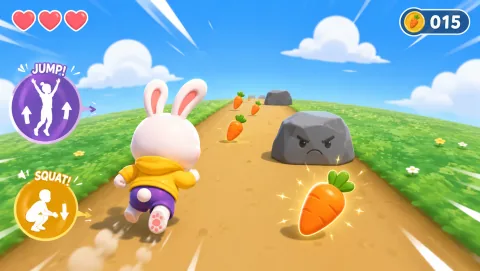 Bunny Hop
Jump in place to hop over obstacles. Needs your feet in frame plus headroom above you — the strictest framing test of the set.
Hand games still failing too? Run the motion game compatibility test to check camera, browser, and performance in one pass, or browse all free games in the game hub.
Privacy note
MovePlay's pose tracking runs entirely in your browser — camera input for movement tracking is processed locally. Accounts, analytics and sharing are separate. Some preferences are saved in your browser; account and game-session records are separate. Details are in the privacy policy and the camera games privacy explainer.
Common questions
Almost always because your legs are not in the camera frame. A webcam mounted on a laptop or monitor at desk height captures head and shoulders from a normal sitting distance. The pose tracker can only score body parts it can actually see, so kicks, squats, and jumps never register. Step back to 5–6 feet (1.5–1.8 m) or tilt the camera down until your feet are visible on screen, and full-body games start working immediately.
For most built-in laptop webcams, 5–6 feet (1.5–1.8 m) is the sweet spot with the camera at hip-to-chest height and tilted slightly down. Taller players and wide-angle cameras may need 7 feet. The test is simple: open the game, stand in your play spot, and check the camera preview — if you can see your head, hands at full reach, and feet at the same time, the distance is right.
Yes, more than almost anything else after framing. The camera needs enough light to separate your silhouette from the room. Face a window or lamp so light falls on you from the front, avoid sitting with a bright window directly behind you (backlight turns you into a dark shape), and turn on an overhead light at night. Dim, warm desk lamps pointed at a wall are usually not enough on their own.
Wear clothes that contrast with your background and fit close enough to show your body outline. A dark shirt against a dark couch or black pants against a shadowed floor makes limbs disappear for the camera. Bare floors, plain walls, and a t-shirt in a different color than the wall behind you all help. Very loose clothing that hides elbows and knees makes joint tracking less accurate.
If you are framed correctly but the skeleton flickers or drops, reduce the load: close other tabs and apps using the camera, plug in a laptop that is on battery-saver mode, and clear clutter from the background behind you. A busy background with moving people, pets, or a TV screen confuses detection. If the game itself stutters, that is a performance issue rather than a detection one — lower the browser window size and close heavy tabs.
No. Hand-tracking games like Fruit Slash, CyberKnot, and the gesture chess games only need your hands and forearms in frame, so a normal desk setup at arm's length works fine. The 5–6 ft rule applies to full-body games — anything with kicks, squats, jumps, or running in place, like High Kicks, Bunny Hop, Squat Pacman, or Genki Run.
MovePlay — Free Webcam Motion Games