📐 Free Camera Tool
Room Space Checker
Does your whole body actually fit in your webcam's frame? Turn on the camera, watch your live skeleton, and get a zone-by-zone verdict plus exactly how far to step back — before you start a game.
🔒 Private by design: pose tracking runs entirely in your browser. No video, photo, or body measurement ever leaves your device — nothing is uploaded, recorded, or stored. Read our camera privacy explainer for exactly how it works.
Measured live in your browser with on-device pose tracking · distance guidance is an estimate, not a survey of your room
How the Checker Works
Full-body pose tracking
The same on-device pose engine that powers MovePlay's webcam games locates 33 body key points per frame — from your face down to your ankles and heels. The checker watches which of them the camera can actually see.
Head, shoulders, hips, knees, feet
Key points are grouped into five body zones. A zone counts as “in frame” only when its points are detected confidently and inside the image — not just guessed beyond the edge. Your score is the share of zones fully visible.
Typical full-body distance
Most webcams at desk height capture a standing adult head-to-toe from roughly 6–10 feet (1.8–3 m) back. Wide-angle laptop cameras need less; narrow field-of-view cameras need more. The checker tells you your real number.
Honest Framing
Step-back guidance is estimated from which body zones drop out of view — it can't measure your room directly. Distances are practical rules of thumb from typical webcam fields of view, and your lens, camera height, and height all shift them. Trust the live skeleton overlay over any number.
Fix Your Framing in Four Steps
Step back until your feet appear
Feet are almost always the first casualty — desks and laptop screens are simply too close for a standing body. Shuffle backward while watching the zone checklist above; the moment “Feet & ankles” flips green, you've found your minimum play distance.
Center yourself and check your arms
Many games read your hands and elbows, so don't stand glued to one side of the frame. Extend both arms out wide — if your hands vanish past the edges, recenter or step a little farther back. Our body tracking setup guide covers lighting and background too.
Clear the floor inside the frame
Laundry piles, chair legs, and coffee tables inside the camera's view are the things you'll trip on mid-game. A clear patch roughly 6 by 6 feet is enough for the full-body games on MovePlay — you mostly move in place rather than travel.
Still too tight? Change the setup, not the room
Raise the camera and tilt it down, or move the screen itself — playing webcam games on a TV across the room buys you several extra feet instantly. If space stays limited, upper-body and hand-tracking games work from a normal desk distance.
Games That Use Your Whole Body
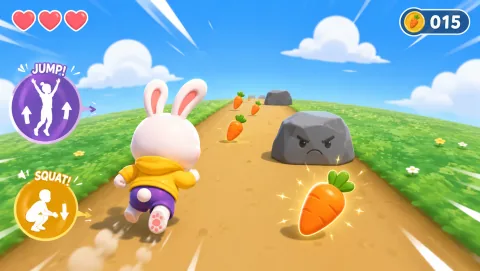
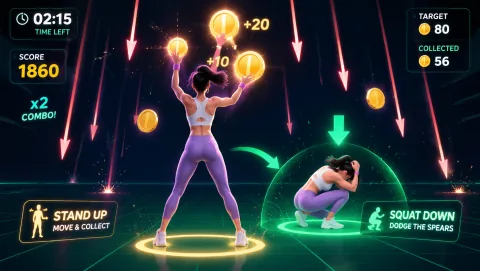
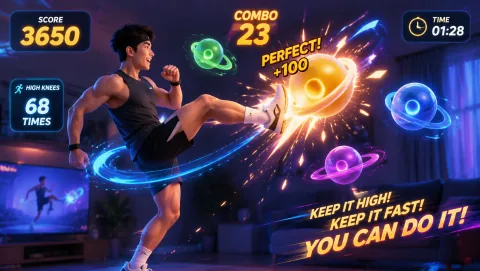
Want a broader compatibility check first? Run the motion game compatibility test for camera, browser, and device checks, or browse all Free webcam games — no download, no signup.
Frequently Asked Questions
How much space do I need for webcam motion games? +
For full-body games, plan to stand roughly 6–10 feet (1.8–3 meters) back from your webcam so the camera sees you from head to feet, with a clear patch of floor about 6 by 6 feet. Games that only track your hands or upper body work from a normal desk distance of 2–3 feet. This checker measures your actual framing so you don't have to guess.
Why does my whole body need to be in frame? +
Pose tracking locates 33 key points on your body — head, shoulders, hips, knees, ankles, and more. When your legs or feet are cut off, games that detect squats, jumps, or kicks lose the points they depend on, so moves register late or not at all. Keeping your full body visible gives the tracker the most to work with and makes controls feel responsive.
Does this checker record or upload my video? +
No. The video feed is analyzed entirely in your browser by on-device pose tracking — no video, images, or body measurements are ever sent to a server or stored. The feed stops completely when you close the tab or press Stop Camera. See our camera privacy explainer for the full details.
I can't step back any farther — what are my options? +
Three things help in a tight room. First, raise the camera and tilt it slightly downward — a higher vantage point captures more of your body from the same distance. Second, switch to upper-body or hand-tracking games that don't need your legs in frame. Third, move the screen itself: plugging a laptop into a TV across the room instantly buys you several feet of play distance.
The camera won't turn on in this tool — how do I fix it? +
Most often the browser blocked permission: look for a camera icon in the address bar and set it to Allow, then reload. On Chrome, Edge, and Safari you can also check the OS-level camera permission for your browser. If another app (Zoom, Teams) is using the camera, close it first. Our camera permissions help page walks through each browser and operating system step by step.