Digital PE

Digital PE activities that actually move students

How to use webcam games, videos, apps, and trackers to run PE in a classroom, a gym, or over a video call — without turning class into screen time.

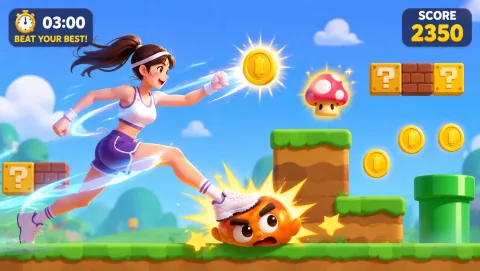
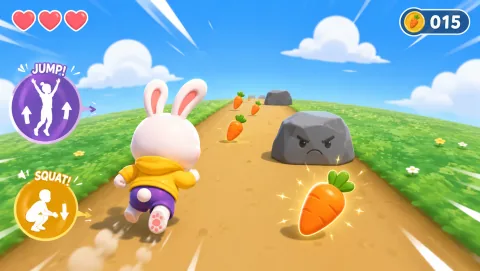
GenkiRun gameplay preview
GenkiRun Run in place to drive a side-scrolling runner — swing arms to sprint, leap obstacles, stomp enemies, and grab coins.
Best for

Best for PE teachers planning tech-mediated lessons for in-person classes, hybrid schedules, or fully remote learners.

01

What Counts as Digital PE?

Any PE activity where technology mediates the movement: a webcam that tracks jumps, a video students follow along with, an app that structures a workout, or a tracker that counts steps and heart rate. The screen is the coach, the referee, or the scoreboard — the student's body still does the work.

02

Tech Is the Delivery, Not the Goal

Good digital PE is judged by the same standards as any PE: elevated heart rate, practiced skills, and students who want to come back. If the tech adds setup time without adding movement, drop it. If it makes movement measurable or more fun, keep it.

03

Why It Took Off

Remote schooling forced PE onto laptops, and teachers discovered some formats were worth keeping: instant feedback, built-in scoring, and activities a student can run alone at home with nothing but a Chromebook camera.

Compare the options

Four types of digital PE, and when each fits

No single format wins everywhere. Interactive webcam games give the richest feedback; videos scale to any room; apps add structure; trackers add data. Most strong programs mix two or three.

TypeWhat it isBest settingWatch out for
Interactive webcam games Browser games where the camera tracks the body — jumping, squatting, reaching — and scores it live. MovePlay's live games are all this type. In-person projected play, small-group stations, and remote (each student plays on their own laptop camera). Needs a camera and about 2×2 meters of clear floor per player.
Follow-along videos Guided workouts, dance routines, and skill drills students mirror from a screen. Whole-class in-person sessions and remote days with mixed devices — works on any screen. No feedback: the video can't tell a student their squat is shallow. Easy to coast.
Fitness apps Structured programs with timers, progressions, and logs on phones or tablets. Hybrid schedules and older students doing independent work between class days. Device access varies; many apps gate content behind accounts or subscriptions.
Heart-rate & step trackers Wearables or phone sensors that quantify effort during any activity. Gym sessions where you want effort data, and assessment units built on activity minutes. Hardware cost and distribution; data measures quantity, not skill or form.

Ready to run

Three formats you can use this week

1. In-person projected (whole class, 10 min)

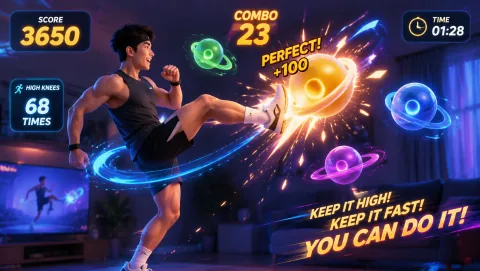
Connect one laptop to the projector and open a webcam game. Students take 60–90 second turns while the class counts reps or calls out targets. Rotate through 6–8 students per game. Works with Bunny Hop or High Kicks — big, readable movements the whole room can follow.

2. Small-group station (rotations, 20 min)

Set up 2–4 Chromebooks as one station in a circuit. Each pair plays a two-minute round, records the score on a clipboard, and rotates on your whistle. Webcam games pair well with one non-screen station (jump rope, cones) so device demand stays low. See Chromebook exercise games for station-friendly picks.

3. Remote challenge (async or live, 15 min)

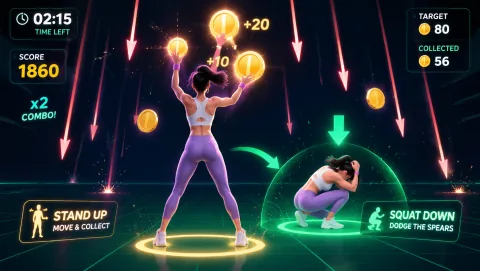
Post a weekly challenge: "Beat 400 points in Squat Pacman three times this week." Students play at home on their laptop cameras and report scores on a shared sheet. Live version: everyone plays on the video call at once while you spot-check form. More remote structures in Online PE Games.

Assessment-friendly

Making digital PE count on paper

Digital formats shine when you need evidence. Two ideas that work without extra software — describe them to your admin as participation structures, not products.

Sample lesson block

A 25-minute digital PE block

  1. 5 minutes: projected warm-up — volunteers take 45-second turns in Bunny Hop while the class mirrors the movements in place.
  2. 12 minutes: station rotation — webcam game station plus two equipment-free stations; two-minute rounds, scores recorded.
  3. 5 minutes: remote students (or in-class) play the same challenge simultaneously; call out the top three scores.
  4. 3 minutes: cool down and log completion on the class sheet.

More options

Round out the rotation

Keep it realistic

Setup and safety notes

Clear roughly 2×2 meters per active player, tape a floor marker where the camera frames the full body, and keep turn lengths short so waiting students stay warm with shadow movements. Test the camera angle on the actual projector before class — glare and backlight are the usual culprits. For remote students, remind them to clear floor space and check that siblings and pets are out of the play zone.

Questions PE teachers ask

FAQ

Does digital PE count toward PE requirements?

It depends on your district and state. In many places, movement minutes are movement minutes regardless of whether a screen mediated them, but some districts have specific rules about what counts as instruction time. Check your local guidance before logging digital sessions as official PE credit.

What devices do students need for digital PE activities?

For webcam-based games, each student or station needs a laptop or Chromebook with a camera and a browser — no downloads or controllers. For in-person projected formats, one computer and a projector or large display is enough. Follow-along videos need any screen; fitness apps and trackers need phones or wearables, which schools often provide or students bring.

Does digital PE work over video calls for remote students?

Yes. The simplest pattern: each student opens the same browser game on their home laptop and plays on camera while the teacher watches and calls out scores. Alternatively, the teacher screen-shares a game and students move along at home. Webcam games work well here because the student's own camera runs the tracking locally, so call quality does not affect gameplay.

How do I keep remote students engaged in PE?

Keep rounds short (3–5 minutes), rotate activities every session, and make progress visible. Class scoreboards, weekly completion streaks, and letting students pick the next game all work better than long repetitive workouts. Mixing one high-cardio game with one coordination or rhythm game per session keeps different students winning at different things.

Try it next class

Project one game. Watch the room move.

Play GenkiRun free