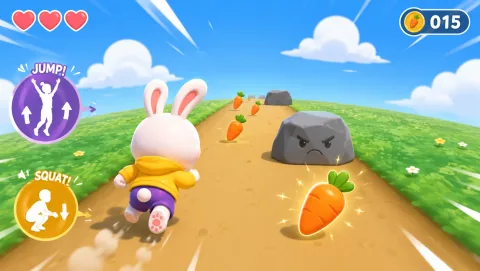
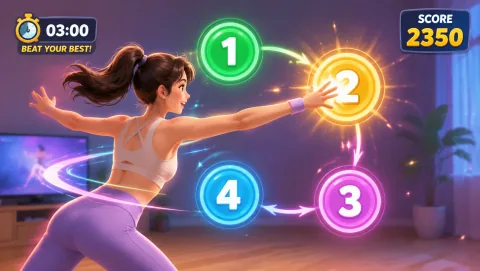
A classroom projector can do more than show videos. It can provide visual cues for movement games that the whole class can follow from their own space.
The best projector games use large visuals, simple rules, and no reading-heavy interface.
The most important classroom detail is often the transition nobody puts in the title. Rules should be fast to explain, participation should not create a long queue, and the room needs a clear route back to learning. That is what turns a fun idea into a classroom tool.
Formats that work under PE constraints
Direction reaction
Show arrows pointing up, down, left, and right. Students respond with reaches, squats, or side steps.
Increase speed as the class learns the mapping.
If one student is active and five are waiting, change the rotation before adding more features to the game.
Color actions
Assign an action to each color. Flash colors on screen in changing order.
For example:
- red = freeze;
- green = march;
- blue = reach;
- yellow = squat.
Offer an easier movement range without making it feel like a public 'easy version.'
Quiz and move
Display a multiple-choice question. Each answer maps to a movement or direction. Students move to respond, then discuss the answer.
Use the digital feedback as one source of information, not as a substitute for teacher observation.
Visual rhythm
Use icons or shapes to represent claps, steps, and pauses. Students perform the pattern, then try a harder one.
Keep a non-digital station ready so a browser or camera problem does not stop the lesson.
Webcam game projection
A webcam game can make the projected screen responsive to one player. One student plays while the class predicts, mirrors, or rotates through turns.
MovePlay runs in the browser, so a compatible classroom computer can use the same projector for both display and camera interaction. Check camera policy and framing before class.
Give the station a clear zone, time limit, and reset instruction before the first student starts.
What makes it work in PE:
Teachers benefit more from reliable formats than from endless novelty. Rules should be fast to explain, participation should not create a long queue, and the room needs a clear route back to learning. That is what turns a fun idea into a classroom tool.
Pose matching:
Show a silhouette or simple pose and give students five seconds to copy it. Use neutral or funny shapes rather than difficult flexibility positions.
Use the projector as a cue, not the center of everything
A movement break should not require students to stare at the screen for the entire session. Show the cue, let them move, then reduce visual dependence where possible.
Projector games are most useful when they turn an existing classroom tool into a quick shared activity without adding new equipment or lengthy setup.
One screen works best when the rest of the class has a role—mirror the player, predict the answer, keep a team score, or rotate through another station instead of simply watching.
One thing I would not ignore
A classroom game earns its place when it fits the room, the clock, and the lesson. Rules should be fast to explain, participation should not create a long queue, and the room needs a clear route back to learning. That is what turns a fun idea into a classroom tool.
Keep PE broader than the screen
For school use, I would always think about the ending before starting the activity. Rules should be fast to explain, participation should not create a long queue, and the room needs a clear route back to learning. That is what turns a fun idea into a classroom tool.
Make the activity work in the real timetable
Best fit: use this when the teacher can explain one visible rule, keep the first turn brief, and give students a clear way to watch, lead, or pause without being singled out.
Limit: it is a poor fit when setup takes longer than the learning goal, the room cannot be reset safely, or the scoring rewards speed over control. A lower-tech version may teach the same idea better.
If you are choosing: If you are choosing between formats, begin with the option that needs the fewest materials and the least movement across the room. Test one round before committing the whole class.