01
Name the job
For webcam games on chromebook, the immediate job is to start without installing a desktop client. Say that out loud so players know what success means before score or speed enters the room.
Device and Setup Guides · Search-led guide
A practical starting point for chromebook users, schools, and families in a browser-first Chromebook setup. Use this page to start without installing a desktop client, while keeping the setup visible and the choice to pause ordinary.
permission check, visible test, and fallback game. This page is designed for Chromebook users, schools, and families who need a concrete starting point, not a generic list of games.
The useful decision is whether the camera view, movement range, social format, and stopping point fit a browser-first Chromebook setup. If they do not, changing the format is a successful outcome.
For Chromebook users, schools, and families, the useful test is simple: can someone understand the first cue and stop without explaining themselves?
01
For webcam games on chromebook, the immediate job is to start without installing a desktop client. Say that out loud so players know what success means before score or speed enters the room.
02
For a browser-first Chromebook setup, clear the camera zone, check light and framing, and keep furniture, cables, pets, doors, and passers-by outside the play boundary.
03
Offer one player, paired, cooperative, or observer route. school permissions, browser tabs, and camera framing. Use a short timer and let people change roles without explanation.
04
Keep a seated, hand-led, quieter, one-person, or no-camera alternative ready. Stop or switch when the original movement, room, privacy preference, or energy level no longer fits.
These device and setup guides offer different control styles to try in a browser-first Chromebook setup. Start with the option whose movement rule is easiest to explain, then switch if the room or people call for it.

camera-guided movement
Mine Hook fits this page because it uses camera-guided movement in a clear area where the player stays visible.
Play fit: a readable movement-to-screen loop

camera-guided movement
Bubble Sub fits this page because it uses camera-guided movement in a clear area where the player stays visible.
Play fit: a readable movement-to-screen loop
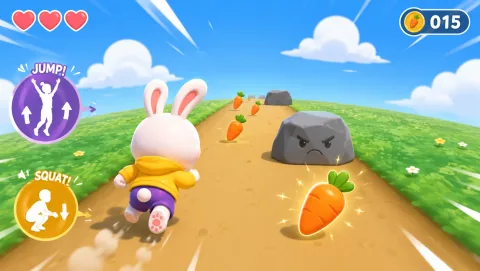
full-body leaning, ducking, and optional jumping or arm raises
Bunny Hop fits this page because it uses full-body leaning, ducking, and optional jumping or arm raises in medium clear space with moderate-to-high movement.
Play fit: energetic supervised sessions with clear obstacle cues
Start with Mine Hook. Check the camera view in a browser-first Chromebook setup; if school permissions, browser tabs, and camera framing gets in the way, use the hub to switch control styles.
Open the game hubParticipation is voluntary. Offer player, caller, coach, scorekeeper, observer, or no-camera roles, and never make a camera turn a condition of belonging, attendance, care, or work.
Frame only the area needed for play, tell nearby people when the camera is active, avoid recording by default, and keep play separate from identity, health, purchase, or attendance data.
permission check, visible test, and fallback game Adjust range, pace, posture, audio, or turn length to the person and room. If a participant has a health or mobility concern, follow qualified professional advice.
This page describes an active-play format, not medical treatment, diagnosis, therapy, or a promised health result. For general movement context across ages and abilities, review the WHO Guidelines on physical activity and sedentary behaviour.
What to observe: start without installing a desktop client in a browser-first Chromebook setup while respecting school permissions, browser tabs, and camera framing.
Start with one short, voluntary round. permission check, visible test, and fallback game. Explain the cue, check the camera view, and let people choose player, caller, coach, scorekeeper, observer, or no-camera participation.
For a browser-first Chromebook setup, mark the camera footprint, check light and framing, and keep a lower-movement or quieter alternative nearby. The goal is a workable activity, not a promised health or performance result.
Yes. Keep camera use optional and offer a meaningful observer, caller, coach, scorekeeper, or discussion role. People can switch roles or stop whenever the room, privacy preference, or energy level changes.