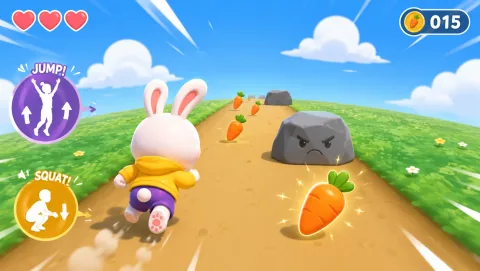
A built-in laptop camera is enough for many webcam games. You do not need a studio camera; you need a clear view of the movement the game is trying to detect.
Webcam tracking is easiest to troubleshoot when the setup is reduced to basics. Browser, operating system, device management, and network policy can all affect a setup that looked simple on a product page. The goal is not technical perfection; it is a configuration people can reproduce.
Best fits for a built-in camera
Hand tracking, upper-body reaction games, pose matching, and simple squat or reach controls usually work well because the player can stay relatively close to the screen.
Motion tracking depends on the whole camera setup, not only the camera specification. Browser, operating system, device management, and network policy can all affect a setup that looked simple on a product page. The goal is not technical perfection; it is a configuration people can reproduce.
A browser motion game has several layers that can fail independently. Browser, operating system, device management, and network policy can all affect a setup that looked simple on a product page. The goal is not technical perfection; it is a configuration people can reproduce.
The fastest technical fix usually comes from changing one variable at a time. Browser, operating system, device management, and network policy can all affect a setup that looked simple on a product page. The goal is not technical perfection; it is a configuration people can reproduce.
Full-body games need more distance
If a game tracks knees or feet, move the laptop farther away and tilt the screen so your full body stays visible. A low coffee table is often better than a desk when you need more vertical framing.
A stable baseline is more useful than jumping straight to hardware upgrades. Browser, operating system, device management, and network policy can all affect a setup that looked simple on a product page. The goal is not technical perfection; it is a configuration people can reproduce.
Webcam tracking is easiest to troubleshoot when the setup is reduced to basics. Start with permission, the correct camera, even lighting, clear framing, and a device that is not busy running several heavy tabs. A repeatable setup turns troubleshooting back into play.
Improve the image before buying hardware:
Face a light source rather than standing with a bright window behind you. Clear visual clutter from the background if possible. Clean the camera lens. These changes often matter more than upgrading from one ordinary webcam to another.
Watch the laptop position:
Do not place the computer where a kick, arm swing, or child running past can knock it over. If the screen is too close to the play area, connect to a television and move the laptop to a safer position.
When an external webcam helps
An external camera can be mounted higher, placed farther from the display, or angled independently. That is useful for group play and rooms where the laptop cannot sit in the right position.
For a first try, though, use the camera you already have. If tracking is stable after a basic setup, there is no reason to complicate it.
Motion tracking depends on the whole camera setup, not only the camera specification. Start with permission, the correct camera, even lighting, clear framing, and a device that is not busy running several heavy tabs. A repeatable setup turns troubleshooting back into play.
Choose it for the group in front of you
Best fit: this works when the ages and confidence levels can share one simple goal, with an adult able to explain the first round and step in if the room loses focus.
Limit: it is a weaker choice when children are tired, the ages are far apart, or one person is expected to perform in front of everyone. A quieter role or a shorter round may be the better answer.
If you are choosing: start with the smallest version that can succeed in the available space. Add speed, scoring, or competition only after the group understands the basic action.