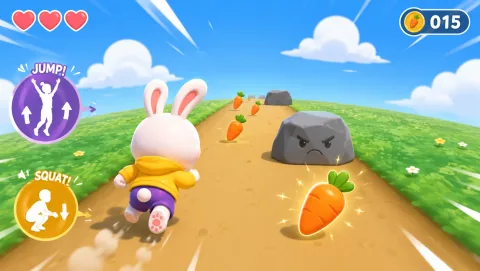
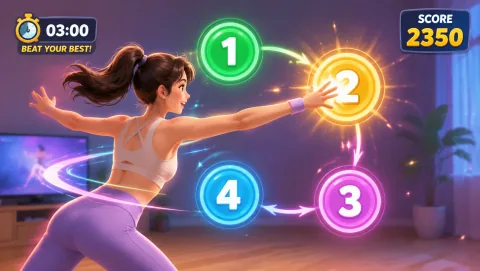
Camera-based classroom games deserve a more specific privacy review than ordinary browser activities. The camera is part of the control system, so schools should know exactly what happens to video, motion data, accounts, and analytics.
A personal-laptop demo is not the same thing as a managed-device test. Document domains, permissions, data handling, and recovery steps so teachers do not have to troubleshoot infrastructure individually. That is what makes a browser tool school-ready rather than merely browser-compatible.
1. Does raw video leave the device?
Ask whether the game processes camera frames locally or sends them to a server. If video is transmitted, understand why, where, and for how long.
Browser access is only the first checkpoint for a school tool. Document domains, permissions, data handling, and recovery steps so teachers do not have to troubleshoot infrastructure individually. That is what makes a browser tool school-ready rather than merely browser-compatible.
Run the test with the student account, not only an administrator account. Policies often differ.
2. Is video recorded or stored?
Live processing and recording are different. A vendor should say plainly whether gameplay footage is ever saved.
The boring technical details are often the ones that decide whether the lesson works. Document domains, permissions, data handling, and recovery steps so teachers do not have to troubleshoot infrastructure individually. That is what makes a browser tool school-ready rather than merely browser-compatible.
3. What happens to pose or skeletal data?
Even if raw video is not uploaded, a service may transmit landmarks or motion features. Ask specifically.
Teachers need a stable setup, while IT needs a clear description of what the tool requires. Document domains, permissions, data handling, and recovery steps so teachers do not have to troubleshoot infrastructure individually. That is what makes a browser tool school-ready rather than merely browser-compatible.
4. Do students need accounts?
If individual accounts are required, identify what personal data is collected and whether age or parental-consent rules apply.
School deployment has to satisfy both the classroom and the IT environment. A fallback manual activity keeps the lesson goal intact if the camera or network is unavailable. That is what makes a browser tool school-ready rather than merely browser-compatible.
5. What analytics are used?:
Review cookies, device identifiers, usage analytics, and third-party services separately from the camera stream.
6. Can the school control permission?:
Managed devices should allow administrators to understand or preconfigure camera access where appropriate.
7. What does the teacher see?:
Confirm whether the camera preview, player image, skeleton, or other visual representation appears on the classroom display. Consider whether that is appropriate for the activity.
8. What happens after the session?:
Check whether camera access stops when the page closes and how users can revoke a previously granted permission.
9. Is there a contact for privacy questions?
Schools should be able to reach a responsible vendor contact and access an up-to-date privacy policy.
A camera game can be privacy-conscious, but only when the architecture and policy are specific enough for a school to verify—not simply described as “safe.”
A personal-laptop demo is not the same thing as a managed-device test. A fallback manual activity keeps the lesson goal intact if the camera or network is unavailable. That is what makes a browser tool school-ready rather than merely browser-compatible.
Make the activity work in the real timetable
Best fit: use this when the teacher can explain one visible rule, keep the first turn brief, and give students a clear way to watch, lead, or pause without being singled out.
Limit: it is a poor fit when setup takes longer than the learning goal, the room cannot be reset safely, or the scoring rewards speed over control. A lower-tech version may teach the same idea better.
If you are choosing: If you are choosing between formats, begin with the option that needs the fewest materials and the least movement across the room. Test one round before committing the whole class.